|

About Exton|Defender SRS

Description
Exton|Defender SRS is a Linux system
available as a Live DVD based on Fedora Rawhide,
64bit. (Rawhide
is the development version of Fedora). Exton|Defender
is for administrating or repairing your system and
data after a crash. Exton|Defender aims to provide an
easy way to carry out admin tasks on your computer,
such as creating and editing the hard disk partitions.
It comes with a lot of Linux software such as system
tools and basic tools (editors, Midnight Commander,
network tools). Exton|Defender can, however, also be
used as a normal Linux Desktop System. It requires no
hard drive installation, but can easily be installed
to hard drive if you want. Desktop environments:
Special versions of Deepin
and Cinnamon
developed by Fedora.
NEWS 231120
A new extra version of Exton|Defender is ready! It
is a LIVE version of Rocky
Linux 9.2 which is also compatible with Red
Hat Enterprise Linux®. Read about it at my new
Exton|Defender site.
231111: HAVE I GOT NEWS FOR YOU!
Today I discovered (by chance) that you can install
Exton|Defender Build 231109 to a USB stick with
persistence! I.e. all your system changes will be
saved directly on the USB stick. Even big system
upgrades! That will make it unnecessary to install
Exton|Defender to hard drive (which can be a bit
tricky). Just run the System from a big enough USB
stick and be happy! Do it like this:
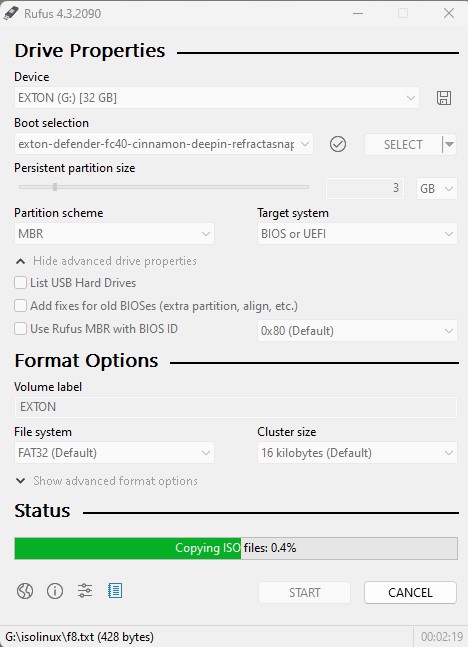
1. Use Rufus 4.3
for the installation.
2. Set a Persistent partition size of about 3GB before
you start the installation. Watch this screenshot...
3. Run Exton|Defender from your created USB stick. Be
sure boot up the System in Legacy
mode. You can run the System also in UEFI
mode, but unfortunately persistence won't be enabled
then.
4. Test run Exton|Defender and change some things. For
example new bookmarks in Firefox. Reboot!
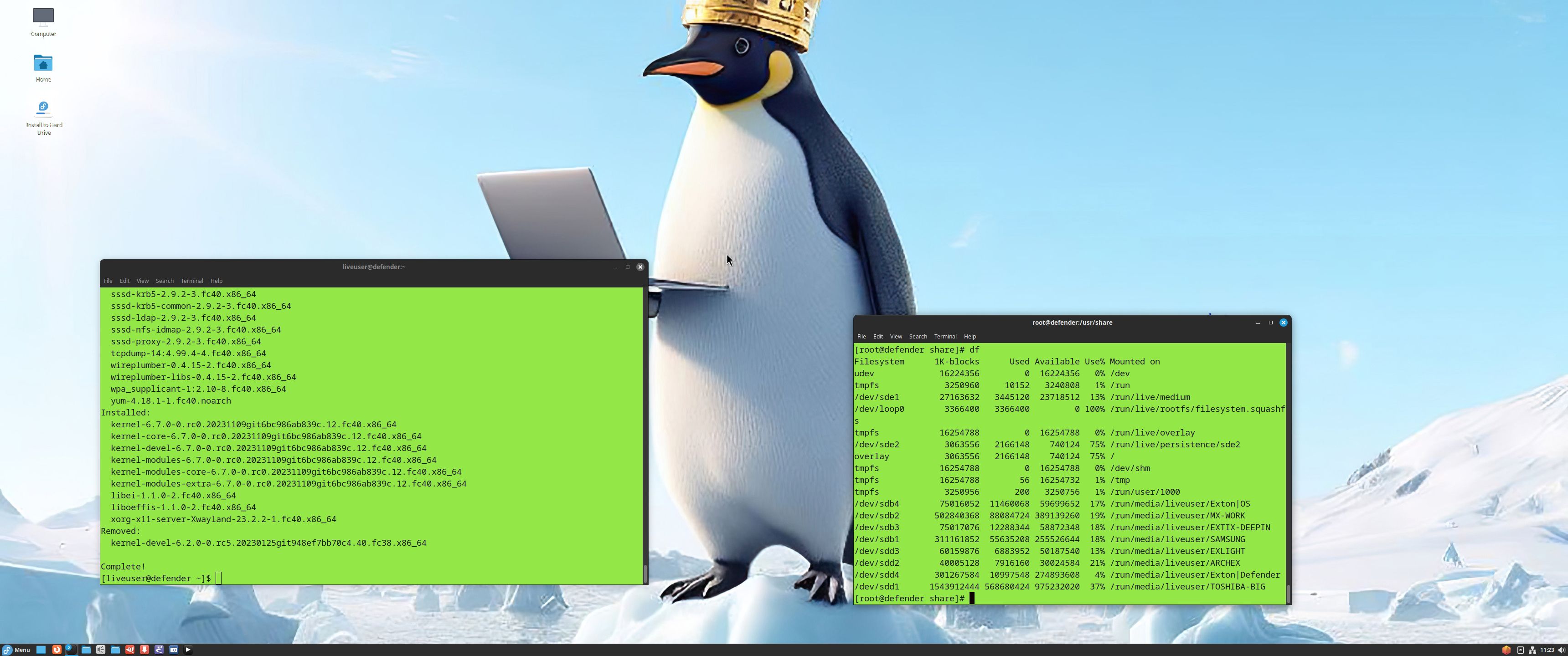
5. You changes should be left if you have done what I
said above. Now you can upgrade the whole system with
"sudo dnf upgrade --refresh". About 230 packages can
be upgraded as of 231111. Watch this screenshot...
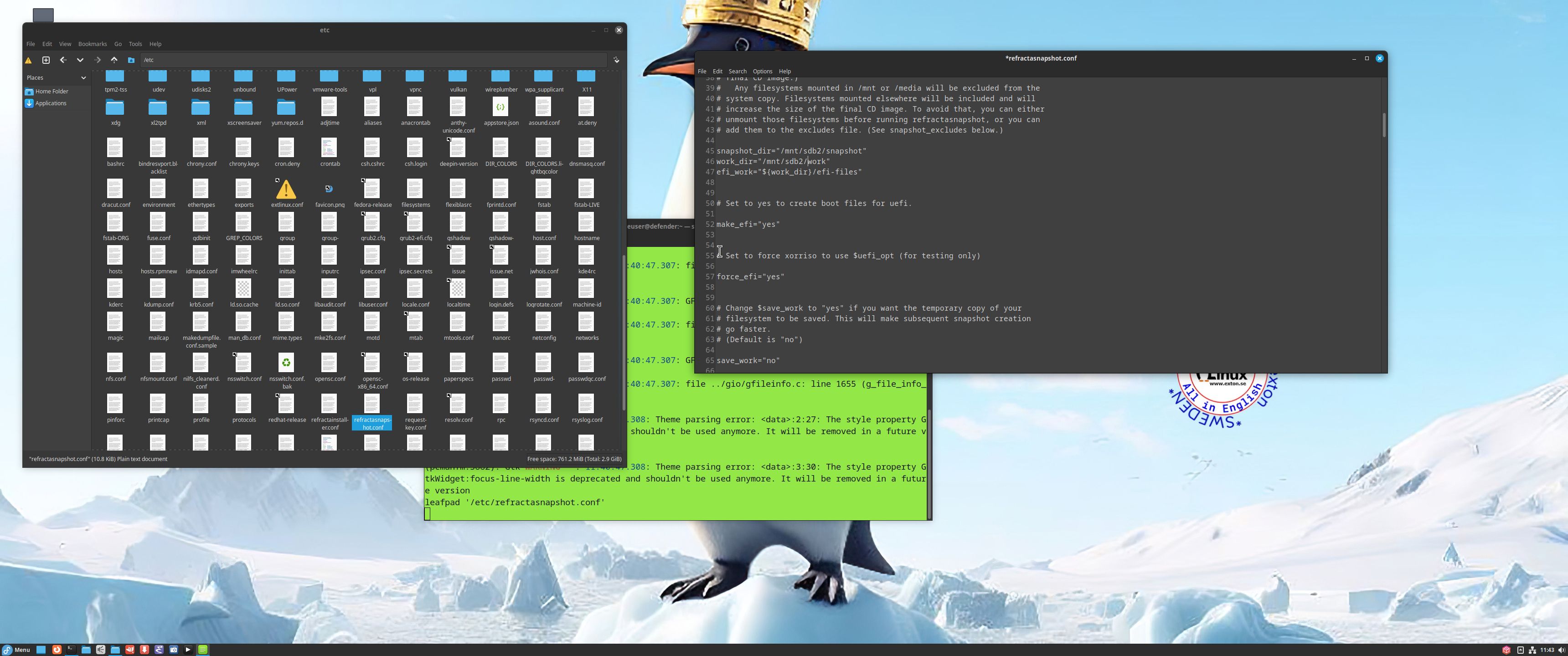
6. Finally you can make a new ISO (your own) if you
want. Be sure to change /etc/refractasnapshot.conf
first. You must see to that the new ISO file and the
work environment will be created on another partition.
Watch this screenshot...
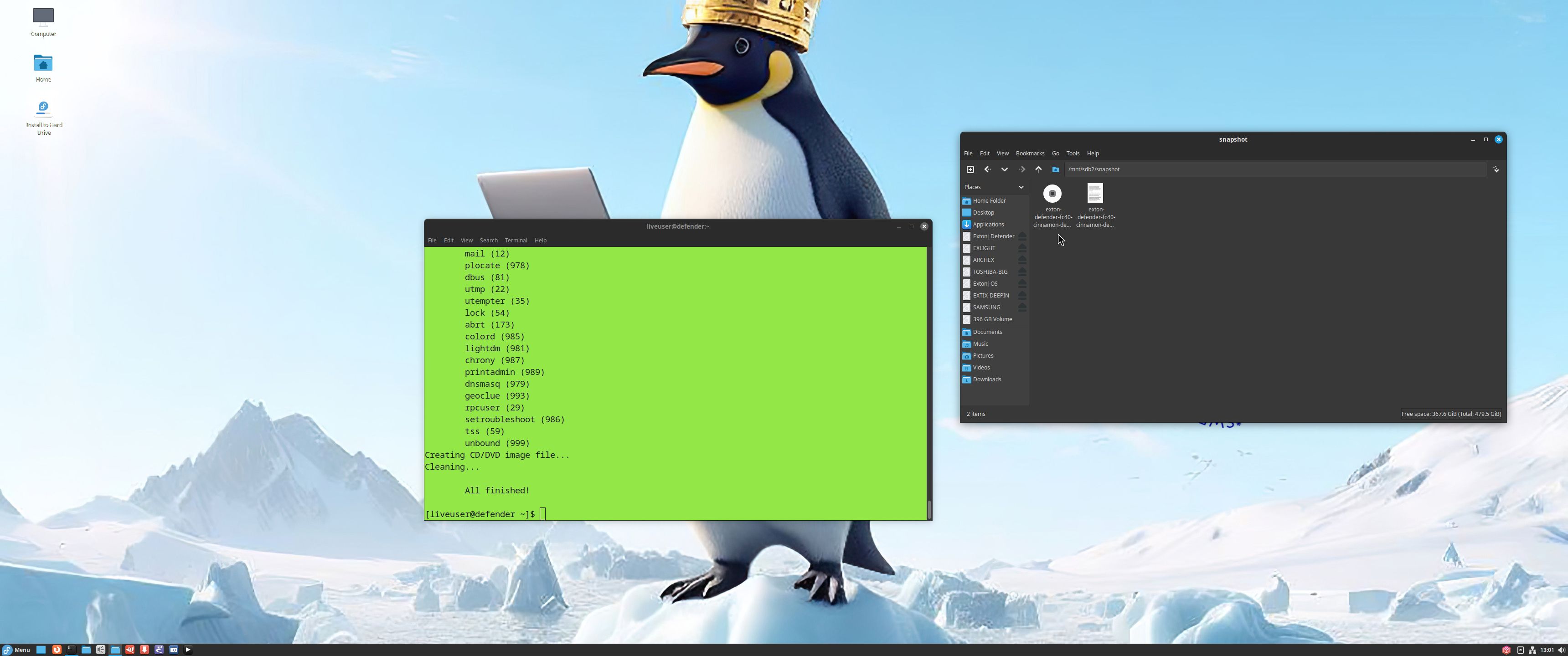
7. Start Refractasnapshot in a terminal with the
command "sudo /usr/bin/refractasnapshot". Follow the
instructions. After a few minutes your ISO will be
ready. Watch this screenshot...
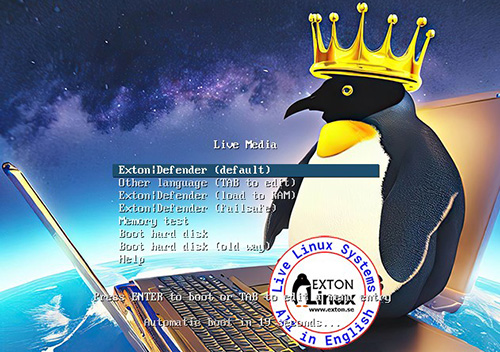
Exton|Defender Boot Screen when booting in Legacy
mode from a USB stick
MORE IMPORTANT INFO 231111
Unfortunately I've found one bug in
Exton|Defender Build 231109. You must install to hard
drive on a partition formatted with the ext3
filesystem! If you install on an ext4
partition the System won't boot. There will be
filesystem errors and the boot loader (Grub2)
won't find the partition. What I just said is valid
for both Anaconda Installer and Refracta Installer.
You can check the filesystem on your install partition
with the command "grub-probe --target=fs --device
/dev/sdb3" (example)
The correct answer shall be: "ext2"
NEWS 231109 ABOUT Exton|Defender Rawhide (Fedora
39/40)
I've made a new version of Exton|Defender 64 bit based
on Fedora "Rawhide" (the development version of
Fedora). I.e. upcoming Fedora 39/40. This new version
uses the Cinnamon and Deepin Desktops. Log in to the
Desktop environment you prefer. Study all other
installed packages.
MOST IMPORTANT CHANGE: I've finally managed to
install Refracta
Snapshot in Exton|Defender, which means that you
can create your own Fedora Rawhide System! I
mean change everything to your liking and then create
a new ISO.
NOTE1: For Refracta Snapshot to work you have
to run "my" kernel 6.5.3-amd64-exton when
Refracta Snapshot is running. (It won't work with
Fedora's kernel 6.7).
NOTE2: Version 231109 of Exton|Defender can run
on really old computers. As an example I could run it
on my 17 years old laptop Acer
Aspire 5102 WLMi.
ABOUT the Cinnamon Desktop Environment
Cinnamon is a free and open-source desktop
environment for Linux and Unix-like operating
systems, deriving from GNOME 3 but following
traditional desktop metaphor conventions. Read
more about Cinnamon. And a review
of Cinnamon 5.6.
ABOUT the Deepin Desktop Environment
Deepin
DE (made in China!) is "devoted to providing a
beautiful, easy to use, safe and reliable system for
global users". I came to like Deepin DE very much when
I installed it in ExTiX
and ArchEX. So
I thought why not install the Deepin DE also in
Exton|Defender?
System Tools included
NTFS-3g,
GParted,
PartImage,
Shred, Sfdisk (util-linux-ng),
Rsync,
Ddrescue,
FSArchiver,
TestDisk
and Midnight
Commander. Other programs (among many others):
NetworkManager, Firefox, Parole Media Player, Samba, Java
and Java Runtime
Environment (JRE),
Emacs, Safecopy,
kernel headers and many compilation tools.
Exton|Defender uses kernel 6.5.3-amd64-exton.
Study all
installed packages...
About Fedora
Please read this overview.
Passwords and LOGIN
The password for liveuser is live.
The password for root is root. If you
(for some reason) want to run Exton|Defender as root
you can do so. Just press Ctrl Alt F2
simultaneously to leave X. Log in as root and run the
command startx. That won't work on all
computers though. At the LightDM
login screen you can choose if you want to log in to
the Cinnamon DE or Deepin. Default DE is Cinnamon. If
you want to log in as root from a Login
Manager you can install GDM.
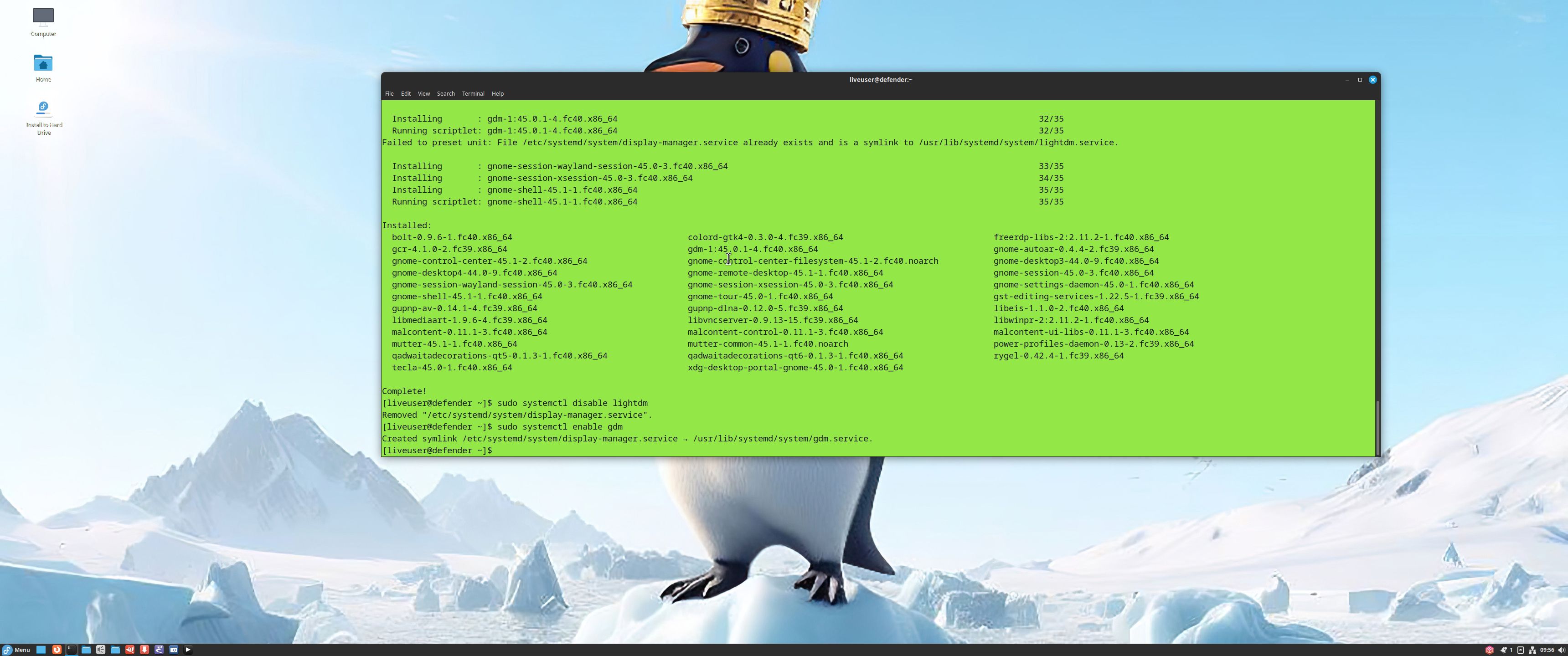
Command: "sudo dnf install gdm". Watch this screenshot.
Or use DNFDragora.
When installing GDM you will also get Gnome
45.
Configuring X
X is auto-configured during the boot from the USB
stick/DVD.
Default
language
The default language (locale) is set to
English.
Sudo
Ubuntu/Debian/Mint and many other so-called beginner
distributions (and other Linux systems) use Sudo to
do something that requires root (superuser)
privileges. There really is no need for a root
password. "Examples of Command": sudo mkdir
/usr/MyFiles. Read HERE
about how Sudo works.
DNF - Fedora Package Management
DNF is a software package manager that
installs, updates, and removes packages
on RPM-based
Linux distributions. Used by Fedora. Basically you'll
only need two commands: dnf update and dnf install
MyGreatProgram. Read
more about DNF...
The ISO-file is of 3270 MB. (A lot of
packages are pre-installed).
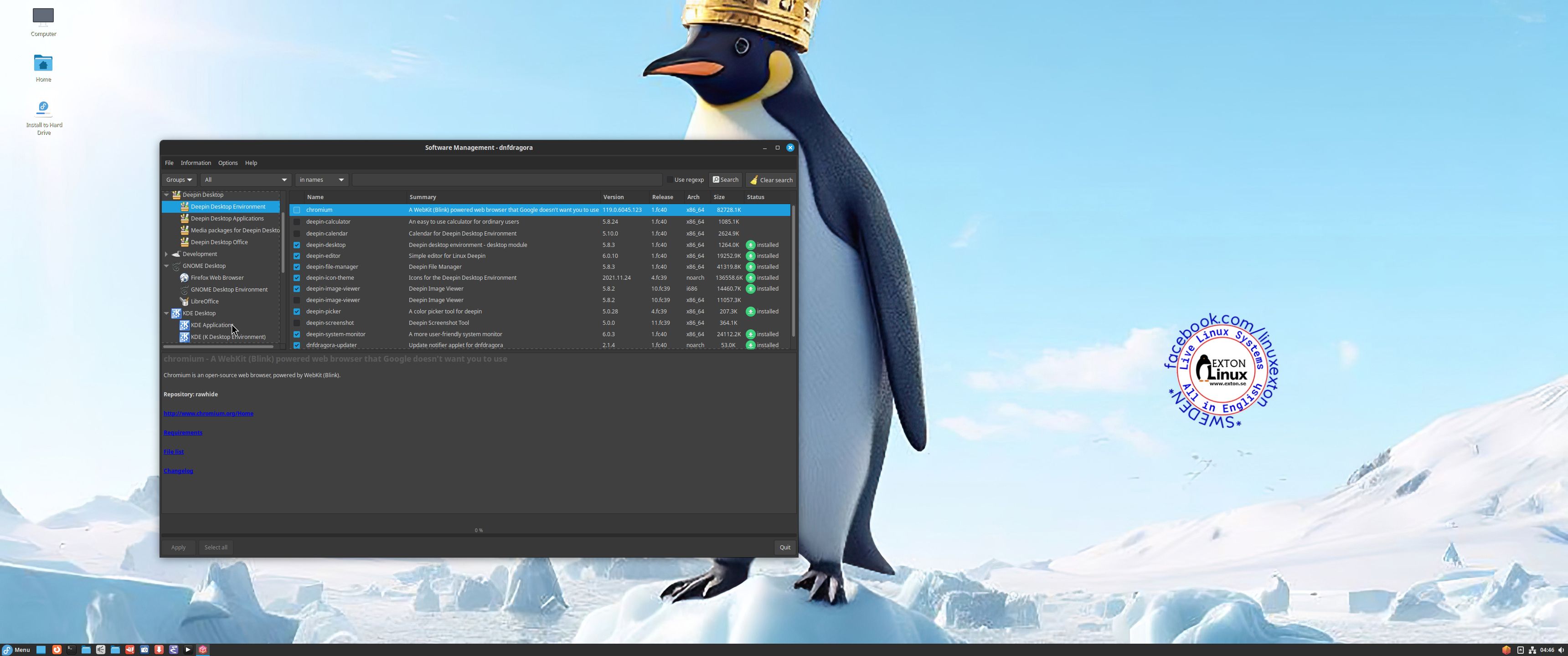
Running Exton|Defender from a USB stick
It works very well. You can (of course) install
new packages. For that you can use the command line
(example: sudo dnf install gimp) or dnfdragora
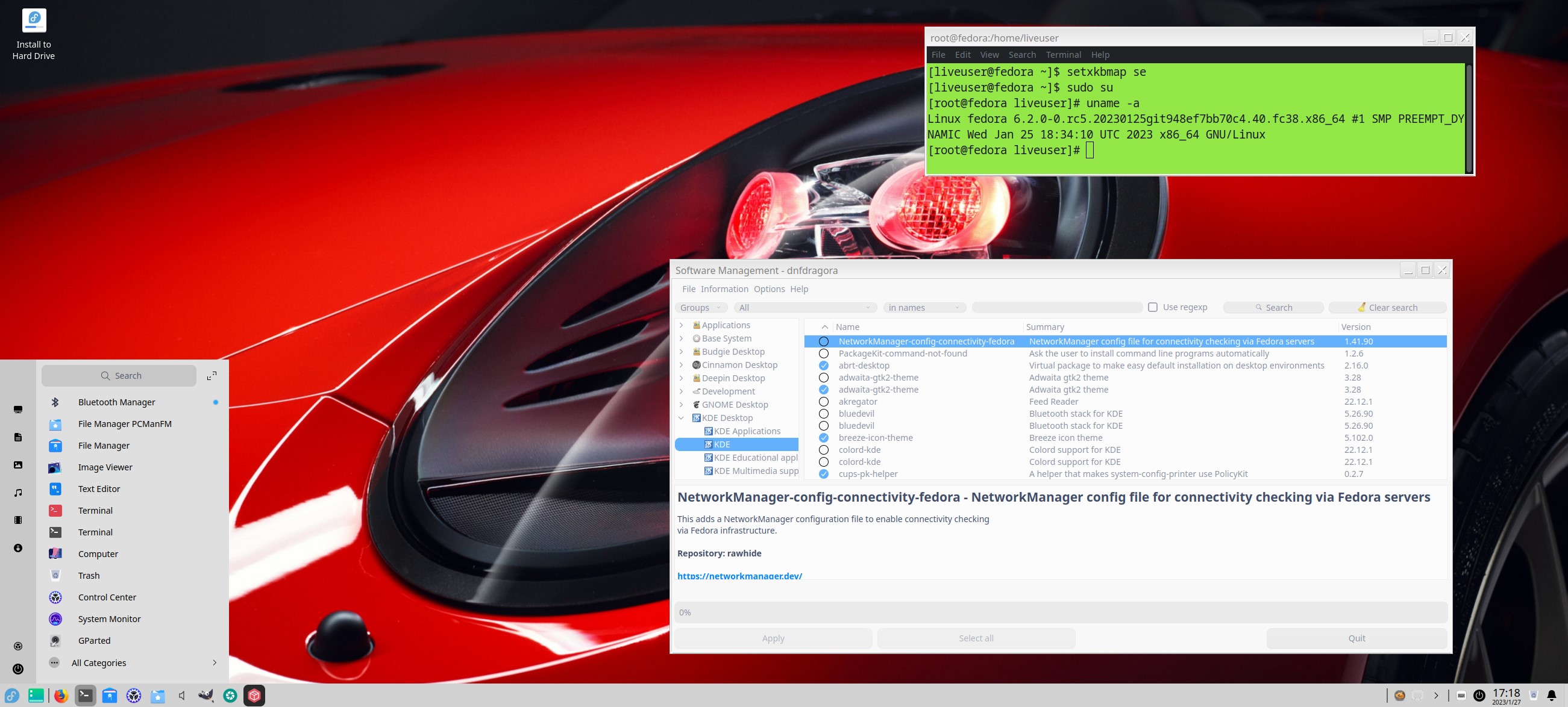
("a dnf frontend"). Watch a screenshot
when dnfdragora is running.
INSTALL
Exton|Defender to hard drive using Anaconda
Use Anaconda
(Fedora's installer). Please read this
INSTRUCTION.
You can (if you want) use Grub2
as boot loader. IMPORTANT NOTE: Since this
Defender Build is based on an unstable version of
Fedora I must strongly discourage you from
installing Exton|Defender on a computer where you
already have other Linux systems (and perhaps
Windows installed). You may mess up your current
(working) boot loader. That said I also must say
that Anaconda
is a well known and "fairly sophisticated"
installer. I did a "test install" of Exton|Defender
on one of my computers without problems. I did not
install Grub2 though, since I already have seven (7)
Linux systems and Windows 11 installed. Please read
my INSTRUCTION
How to dual-boot, triple-boot or multi-boot Linux
with Windows and be happy...
Note also: Be sure to install on a partition
formatted with the ext3 filesystem - see
above. Using Anaconda Installer has one big
disadvantage. You will only get a basic Fedora Rawhide
System. Nothing will be left of Exton|Defender. For
example will Refracta Snapshot be gone! So is also
"my" kernel 6.5.3-amd64-exton. After the installation
using Anaconda (and a reboot) you must install some
new packages for the System to be usable. Here is an
example command: "dnf install cinnanmon Xorg xinit
gdm firefox leafpad lxterminal pcmanfm". Finally
run the command "systemctl enable gdm" and
reboot. After that you will be able to log in from GDM
Login Manager to either Cinnamon or Gnome.
INSTALL Exton|Defender to HARD DRIVE using Refracta
Installer
You can also use Refracta
Installer preferable in VirtualBox. Using
Refracta Installer is the best way to install to hard
drive if you want an exact copy of
Exton|Defender, which you later on can change to your
liking. How to use Refracta Installer in VirtualBox:
1. Create the install partition with the ext3
filesystem and a SWAP partition in advance.
2. Open up a terminal and run the command sudo
/usr/bin/refractainstaller
3. Follow the instructions. Be sure to choose an ext3
partition
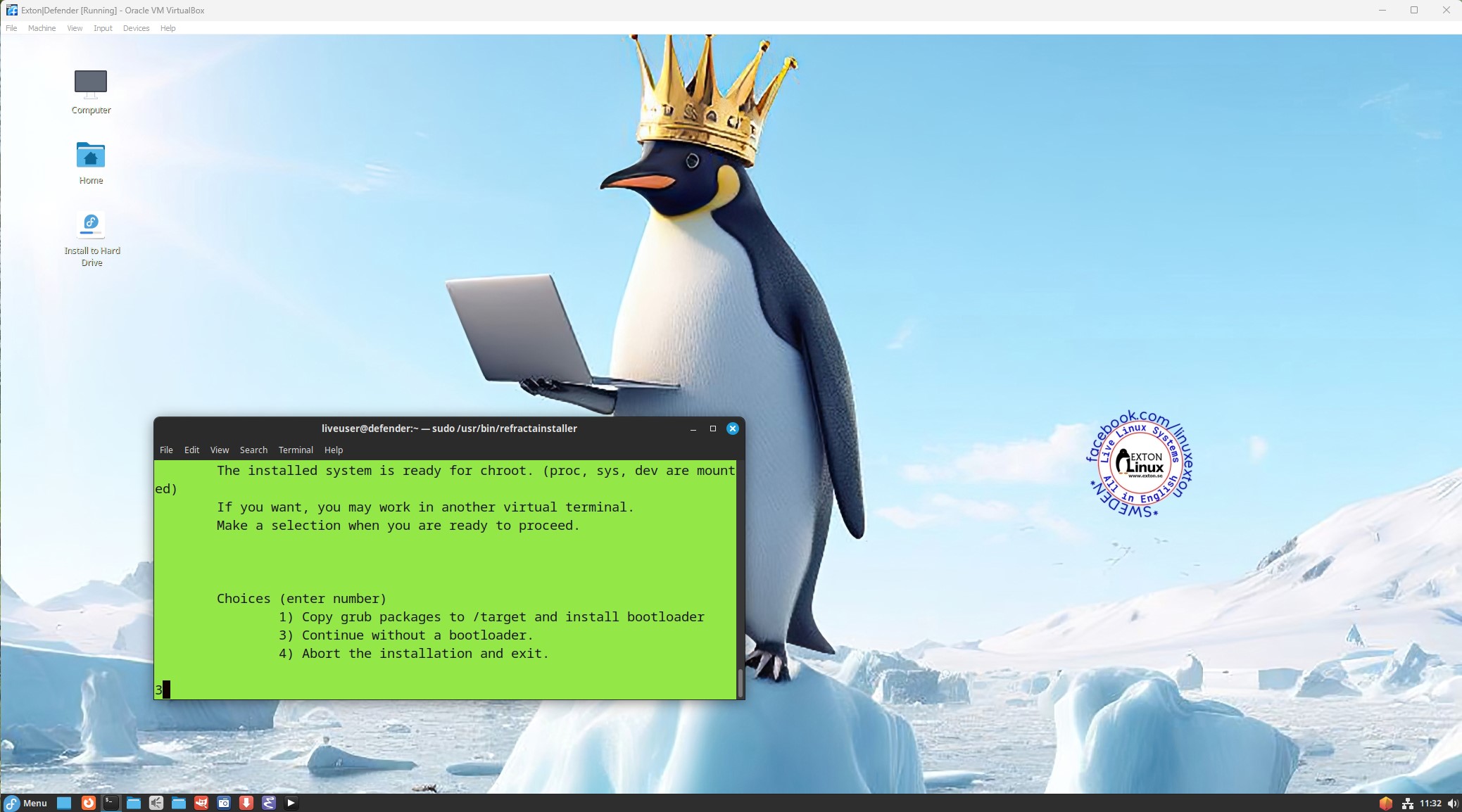
4. Refrain from installing Grub2 even if you need Grub
as bootloader - watch this screenshot...
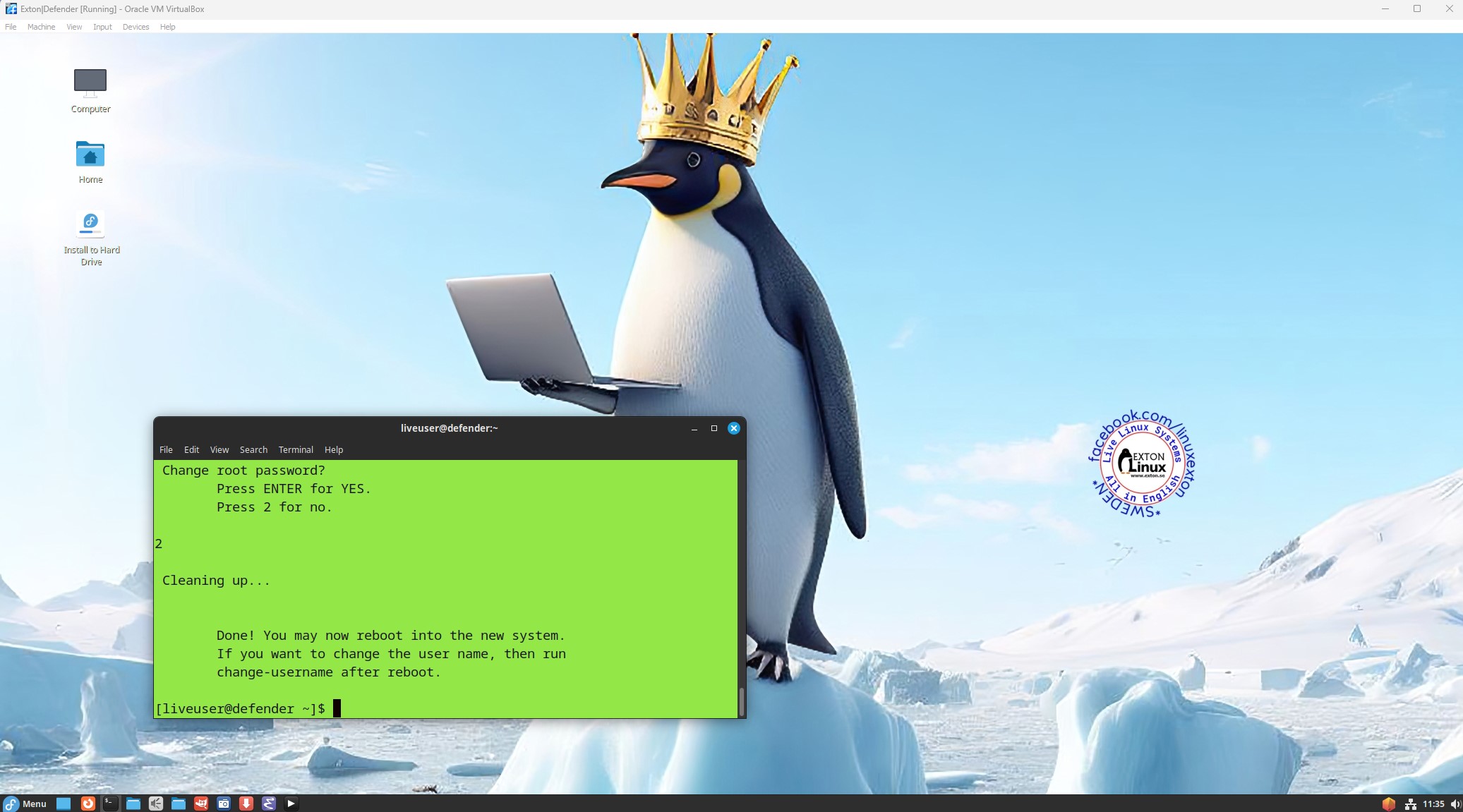
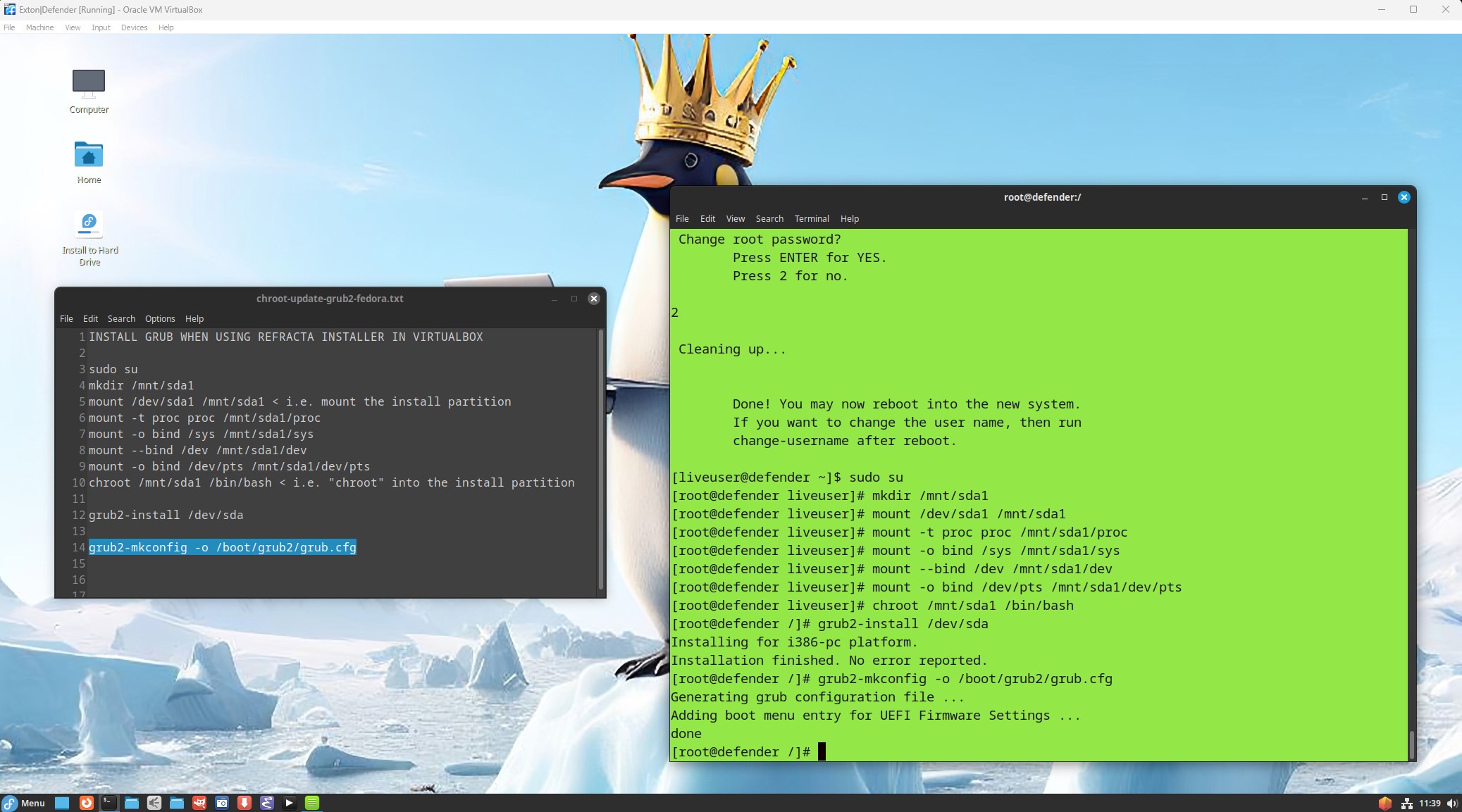
5. Chroot and install Grub2 (if you need it) when the
installation is ready
- watch this screenshot...
Note that the file chroot-update-grub2-fedora.txt is
in /home/liveuser. Just copy and paste from there.
Be sure though to install on a partition formatted
with the ext3 filesystem - see above.
INSTALL Exton|Defender to a USB STICK
Use Rufus in
Windows. About persistence see above!
CONFIGURING
X
X is auto-configured during the boot from the DVD disc
or your USB stick. If not you'll end up in console
mode. Run the command sudo X -configure
followed by sudo mv xorg.conf.new
/etc/X11/xorg.conf. Then run startx.
When running Exton|Defender on one of my computers
with an Nvidia
card I had to start in "basic graphics mode". I.e. VESA.
When automatically logged in to Deepin I pressed Ctrl
Alt F2 and thus went into console mode. Then I
ran the command init 1 to leave X. After that
I could successfully run the above mentioned commands
and re-enter Deepin with the command startx.
The driver Nouveau
was used!
Wireless connections
NetworkManager
makes it easy to configure wireless connections. Give
your WEP/WAP password and connect. That s it! You ll
find the NM-applet
to the right in the panel.
SAMBA
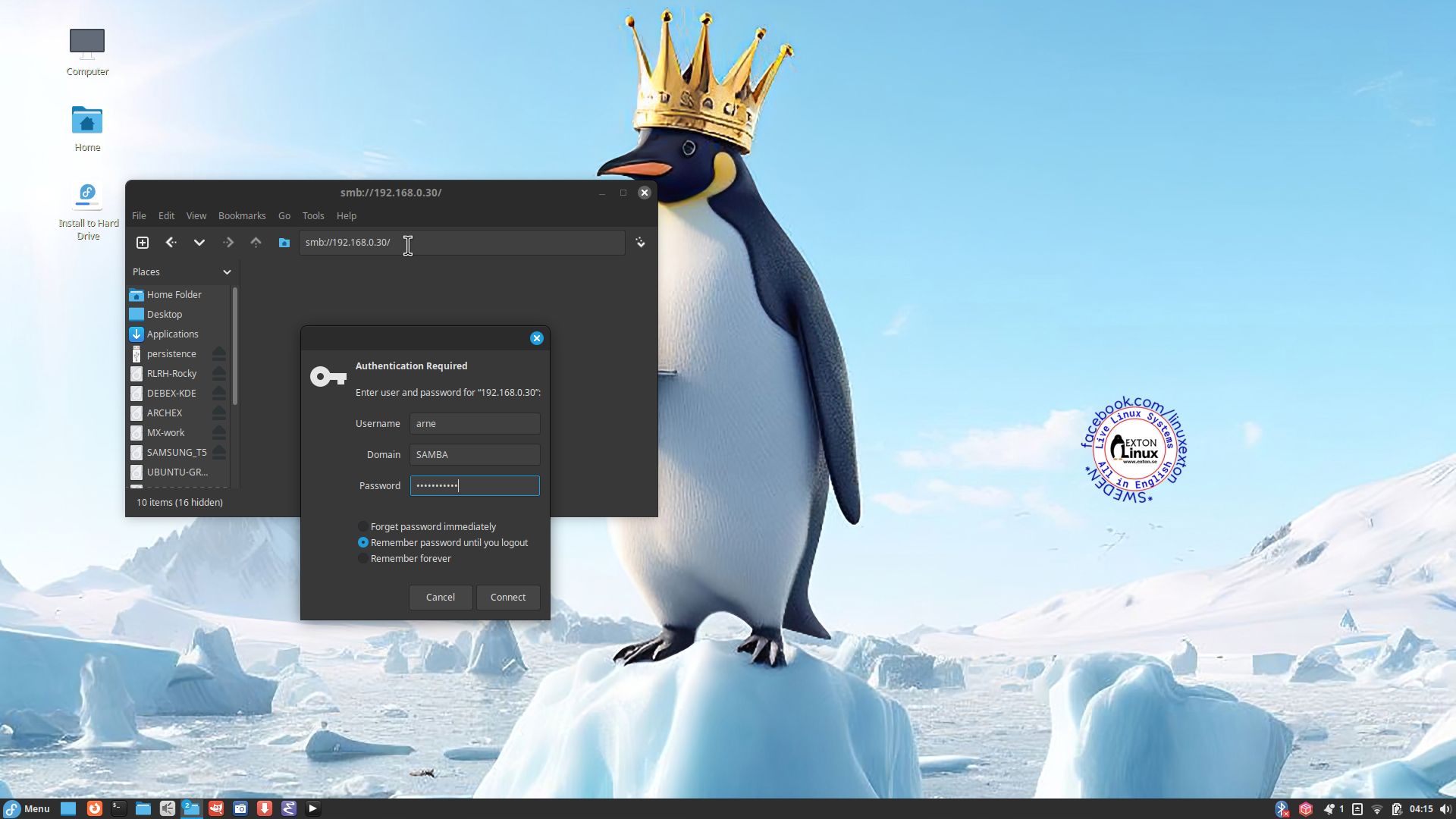
As regards Exton|Defender version 231109 you can use
PCManFM (file manager) to connect to your Windows
computers in your Home Network. Watch this screenshot.
About running Exton|Defender in VirtualBox, VMware
or Qemu
You can run Exton|Defender very well in full screen in
all three virtualizers. To get perfect sound quality
you may have to install some extra media codecs
though. Use Dnfdragora
for that. Watch a screenshot
when Dnfdragora is running.
NOTE: In Build 231109 all extra multimedia
codecs are pre-installed.
Using Refracta
Snapshot
As I said above you can create your own Fedora Rawhide
System once you have installed Exton|Defender to hard
drive. That can (of course) also be done in
VirtualBox. Do it like this:
1. Be sure to run "my" kernel 6.5.3-amd64-exton.
Refracta Snapshot won't work with Fedora's original
kernel.
2. Change everything to your liking. I.e.
install/remove software, change wallpapers etc...
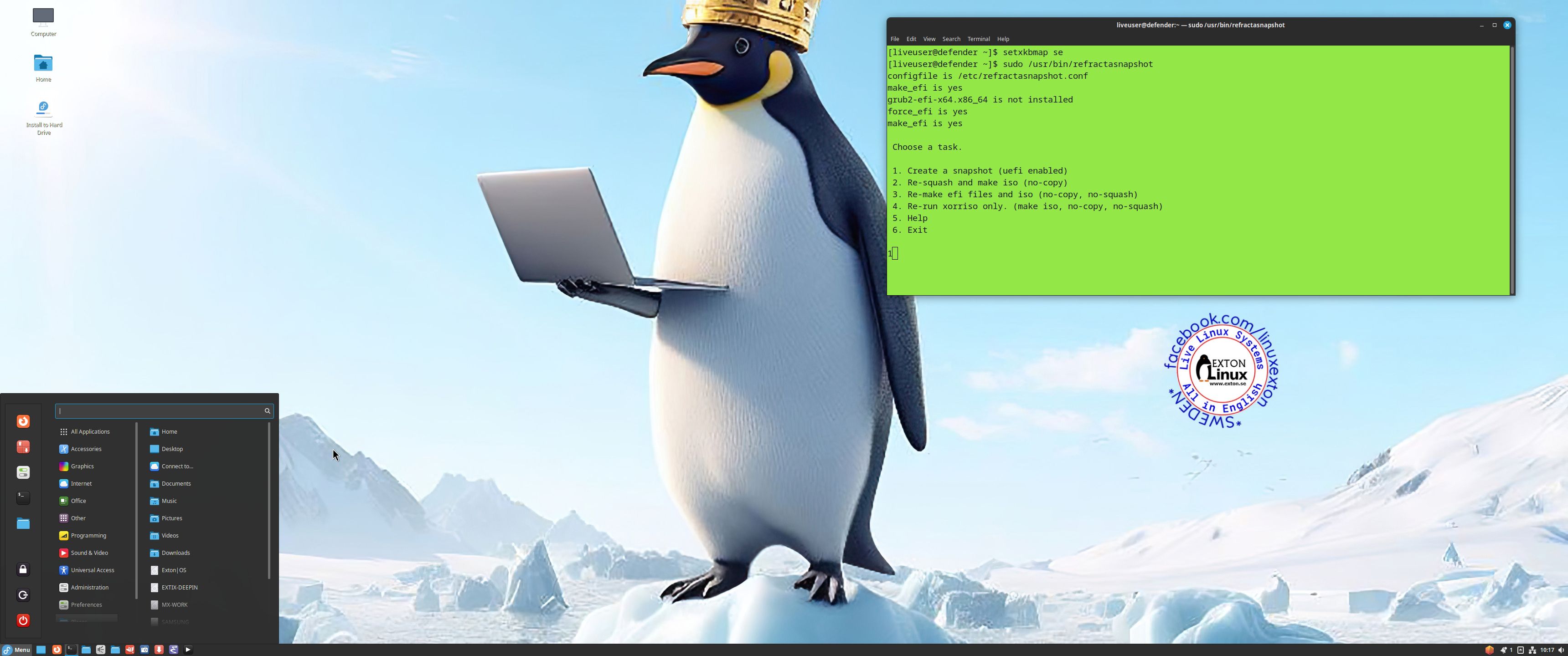
3. Open up a terminal and run the command sudo
/usr/bin/refractasnapshot
4. Follow the instructions - watch this screenshot...
5. Sit back and relax. You new ISO will be ready in a
few minutes. You'll find it in /home/snapshot.
You can also use Refracta Snapshot while running
Exton|Defender from a USB stick - see above!
THE IMPORTANCE OF Exton|Defender being based on
upcoming Fedora 39/40
Programs won't "crash" or anything like that. And
I haven't noticed any "bugs". That said you should of
course be a bit careful. This version of
Exton|Defender is for people who like to use
"cutting-edge" software and the latest kernels etc.
You will always have the latest Linux/Fedora software
installed if you regularly run the command sudo
dnf upgrade --refresh.
SCREENSHOTS
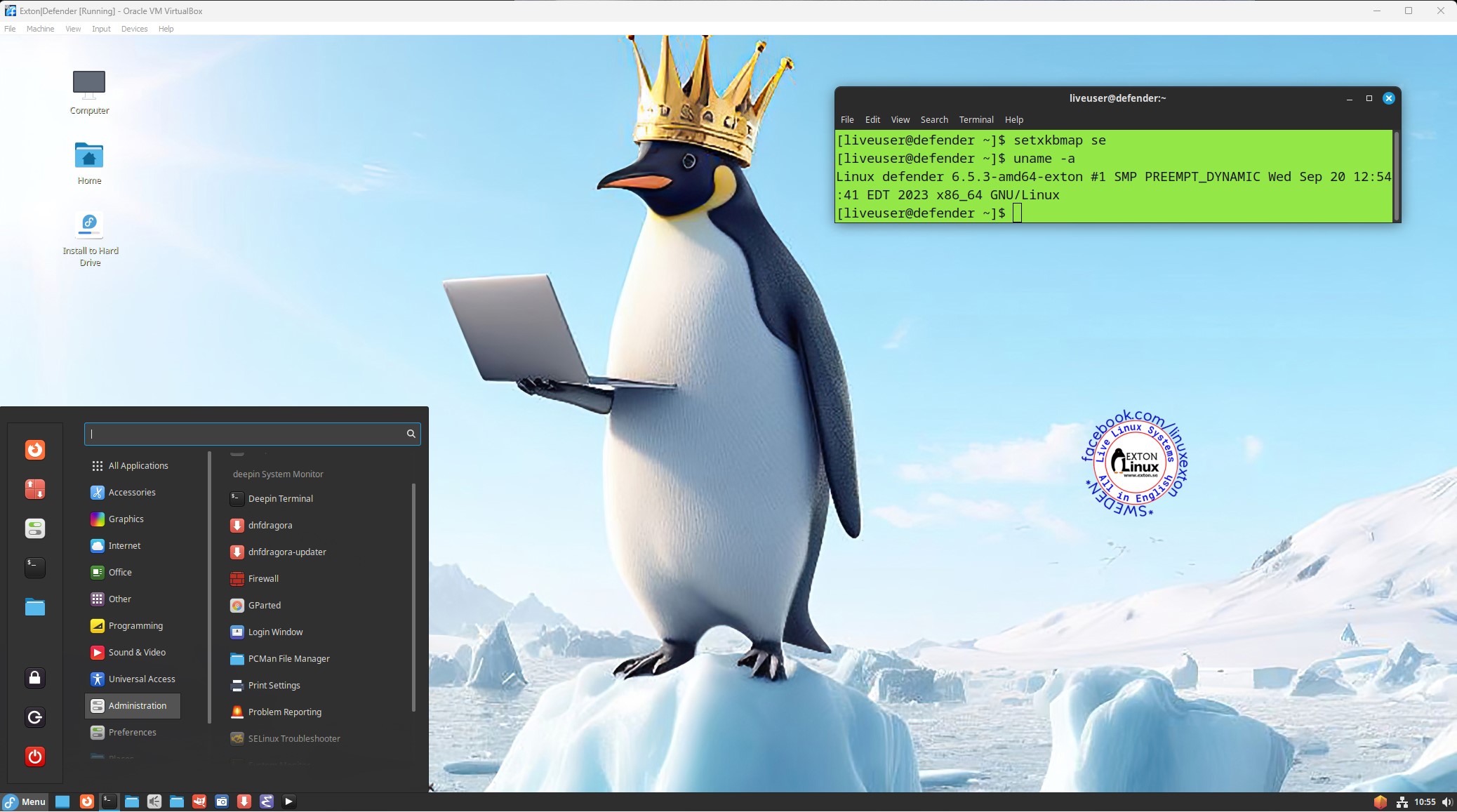
Screenshot
1 - Exton|Defender - running in full
screen in Virtualbox
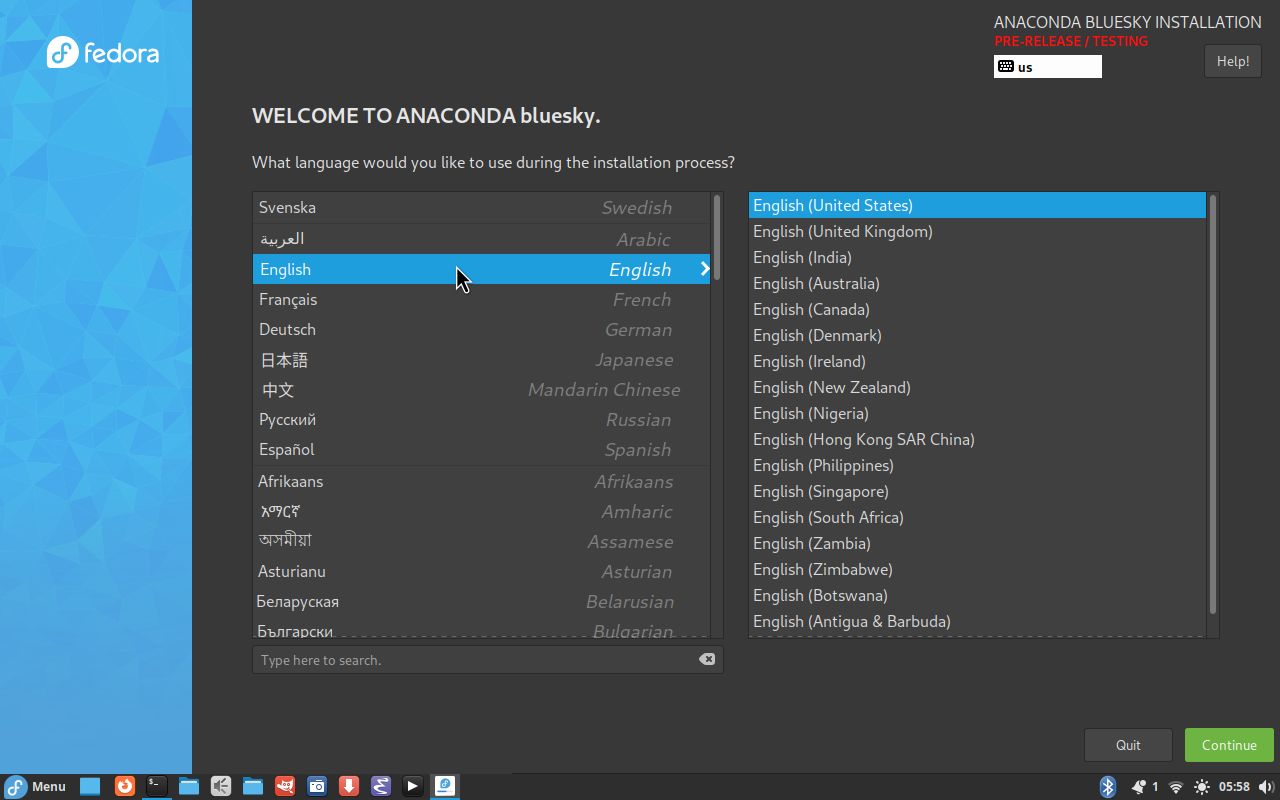
Screenshot
2 - Anaconda (Fedora's Installer) has started
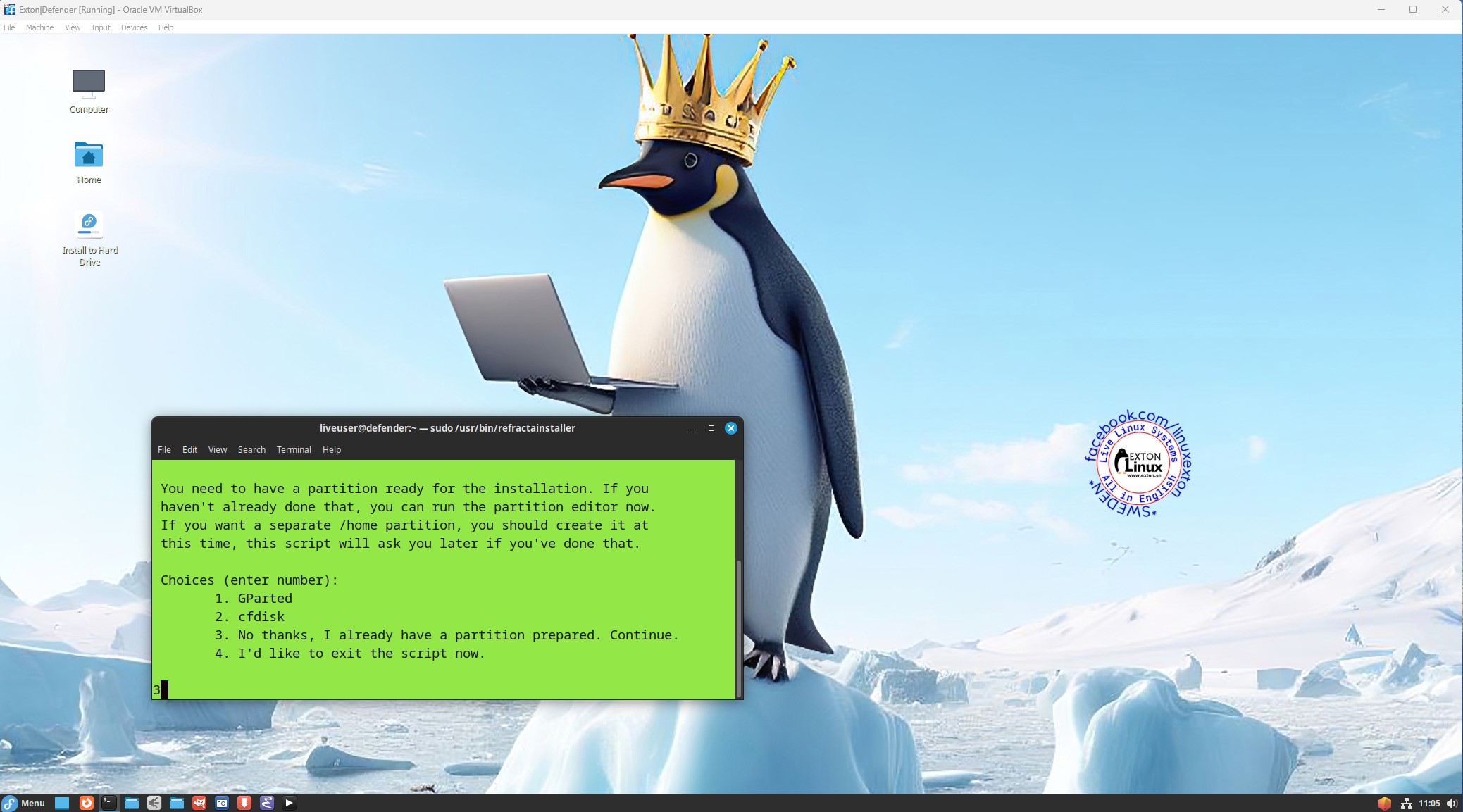
Screenshot
3 - Refracta Installer has started
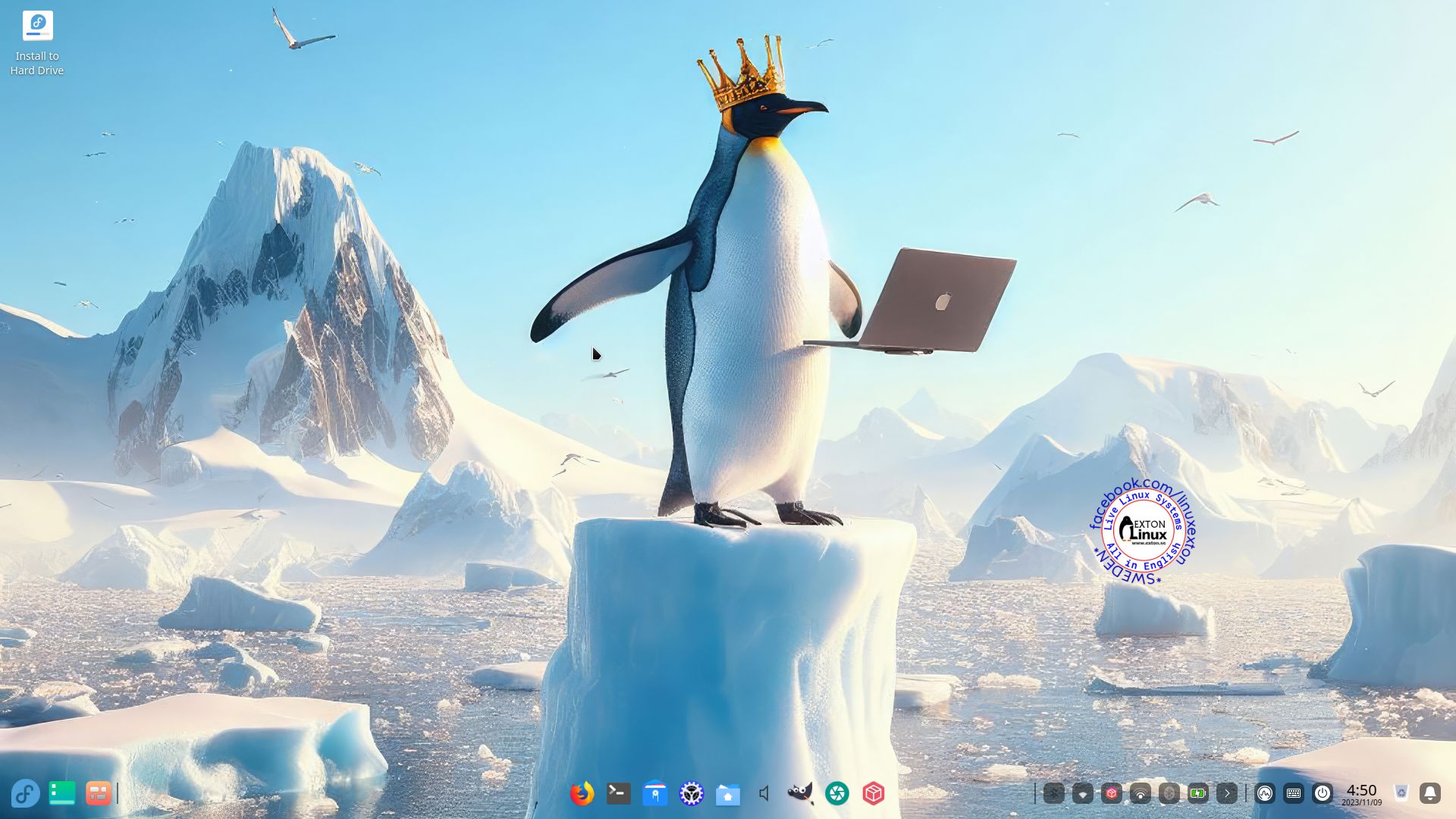
Screenshot
4 - Deepin DE is used
Screenshot
5 - Refracta Snapshot has started
Download
Exton|Defender can be downloaded from SourceForge.net
- Fast, secure and free downloads from the
largest Open Source applications and software
directory DOWNLOAD
md5sum
for the Exton|Defender version 231109 (Fedora 39/40)
ISO file of 3270 MB

Feedback
Fedora 39/40 is at least as "good" as Ubuntu
23.10/Linux Mint and/or OpenSUSE Tumbleweed. I
think. Tell me what you think of Exton|Defender
SRS in combination with the Deepin Desktop. Did
you find the included Rescue System Tools
useful? |
Contact
Android-x86 Custom

Read
about my Android-x86
Systems 11, 10, Pie, Oreo,
Nougat, Marshmallow, Lollipop
and KitKat at
andex.exton.net
latest is AndEX
11 (with GAPPS),
AndEX
10 (with GAPPS)
and AndEX
Pie 9.0 (also with
GAPPS)!
and
about
my Android 13, 12, 11, 10,
Pie, Oreo, Nougat,
Marshmallow and Lollipop
versions for Raspberry
Pi 4 and 3/2 at
raspex.exton.se
latest is RaspAnd 13
and 12
(without GAPPS),
RaspAnd
11 (with GAPPS)
and RaspAnd
Oreo 8.1 (also with GAPPS)!
|
|
|

Other
EXTON Linux Live Systems in English you may like...
Almost all Exton Linux distributions are hosted by
The
Swedish Linux Society. Sixteen (16) exton
distributions can also be downloaded from SourceForge.net
- Fast, secure and free downloads from the largest
Open Source applications and software directory.
READ MORE ABOUT each distribution...

Contact
Other considerations
Disclaimer: This is experimental software. Use at
your own risk. Under no circumstances may C A Exton or
exton.net be held liable for damage to hardware or
software, lost data or other damage either direct or
indirect caused by using this software.
Connect With Me

Exton|Defender >> PayPal
If you like Defender, please use the
button below...
EXTON distributions: The
number of Exton distributions has decreased from 66
(all time high in June 2011) to 16. See a complete
LIST. It was a bit too much for me to keep 66
distributions up to date. All Exton distributions on
the Swedish Linux Society's FTP Server can be reached
HERE.
All exton distributions in English (English locale)
can also be dowloaded
from SourceForge.net.

|